
WhatsApp is one of the most popular messaging apps in the world, with over 3 billion active users globally in 2025, and over 780 million users viewing Status updates daily.
Millions share photos, videos, voice notes, and music on WhatsApp Status. But what if your WhatsApp Status audio not working? You’re not alone — this is a common problem for both Android and iPhone users.
In this guide, we’ll explain why it happens and give simple step-by-step fixes so you can enjoy video and voice audio on WhatsApp Status again.
Why WhatsApp Status Audio Not Working Happens
Here are the most common reasons your WhatsApp Status audio might not be playing:
- Low media volume or silent mode enabled – your phone could be muted.
- App permissions not granted – WhatsApp needs access to the microphone and storage.
- Outdated WhatsApp version – older app builds may have bugs.
- Corrupt cache or temporary file glitch – especially on Android.
- Poor internet connection – audio may not download fully.
- Video file itself has no audio track – Status video might have been muted or saved without sound.
Step-by-Step WhatsApp Status Audio Not Working Fixes
Below are the most effective methods — start from the top and move down until your audio works again.
1. Check Your Phone Volume & Sound Settings
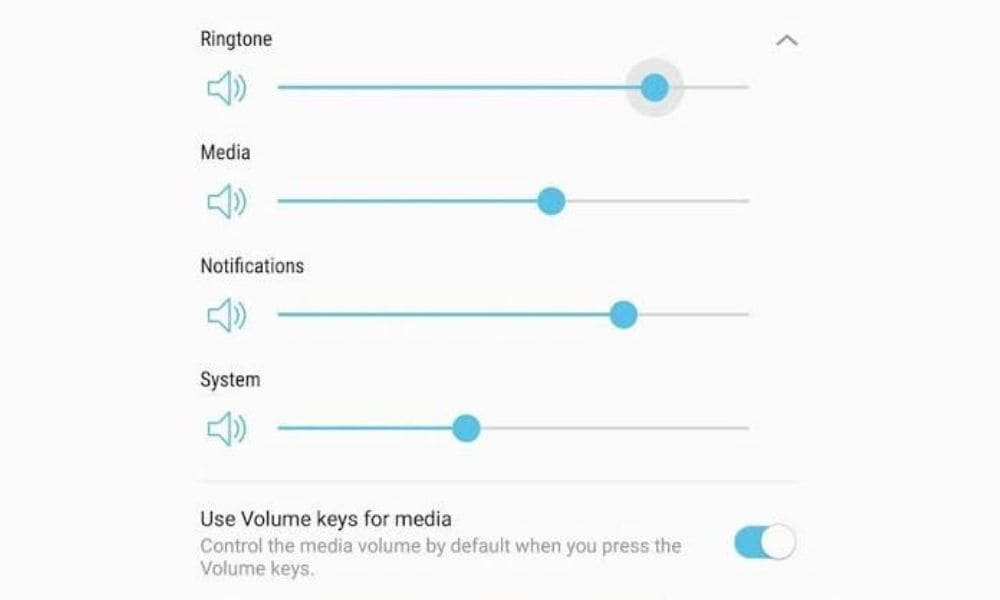
A frequent source of tech frustration is a simple misunderstanding of the modern user interface. Many users assume that if their phone is “loud” because the ringer is up, all sounds will play. However, your device manages audio in silos: “Ringtone Volume” for calls and “Media Volume” for everything else including WhatsApp Statuses.
“Just keeping the ringtone volume high won’t work.”
If your media slider is at zero, your status will remain muted, regardless of how high your ringer is set. This distinction is a classic example of how “intuitive” design can sometimes backfire, creating a barrier when users don’t realize they are adjusting the wrong audio channel.
- Press the volume up key on your phone while WhatsApp Status is playing.
- Turn off Silent or Do Not Disturb mode.
- Confirm media volume is on, not just ringtone volume.
👉 This basic step solves most audio problems. (WhatsApp Help Center)
2. Update WhatsApp to Latest Version
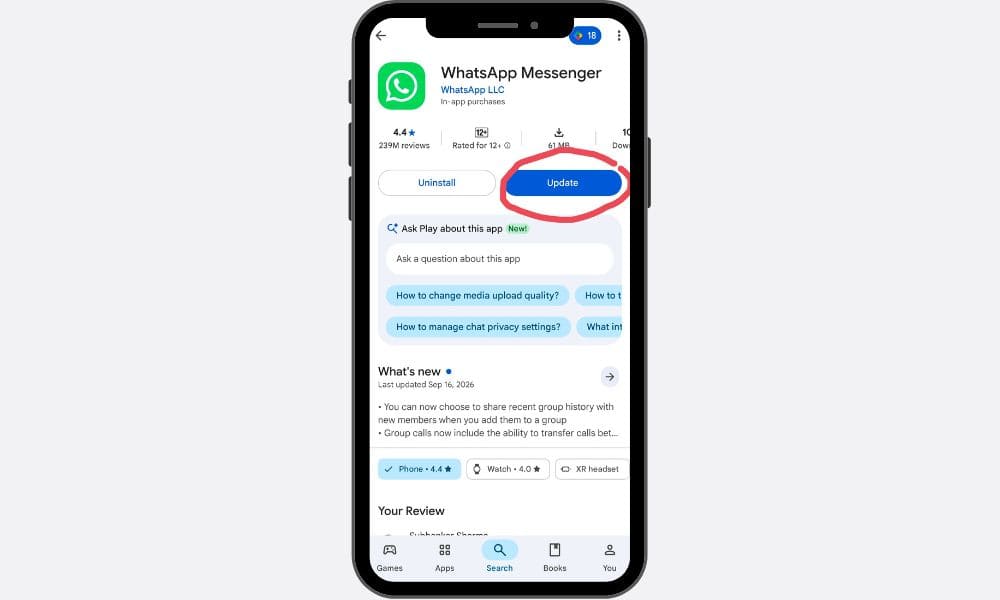
Let’s start with the low-hanging fruit: the software update. The first and most common reason for audio failure is simply running an outdated version of the app. Software developers are constantly playing a game of “whack-a-mole” with bugs, and older versions of WhatsApp are notoriously prone to status audio glitches where the sound simply fails to trigger.
To fix this, sprint over to your respective app store (Google Play Store or Apple App Store) and check for any pending updates for WhatsApp. Keeping your app current ensures you have the latest compatibility patches. In the tech world, “versioning” is often the overlooked culprit; as mobile operating systems evolve, legacy app versions struggle to communicate with new hardware drivers, leading to these eerie silent errors.
- Go to Google Play Store (Android) or App Store (iPhone).
- Search for WhatsApp.
- Tap Update if available.
Updates fix many bugs related to audio playback.
3. Clear WhatsApp Cache (Android Only)
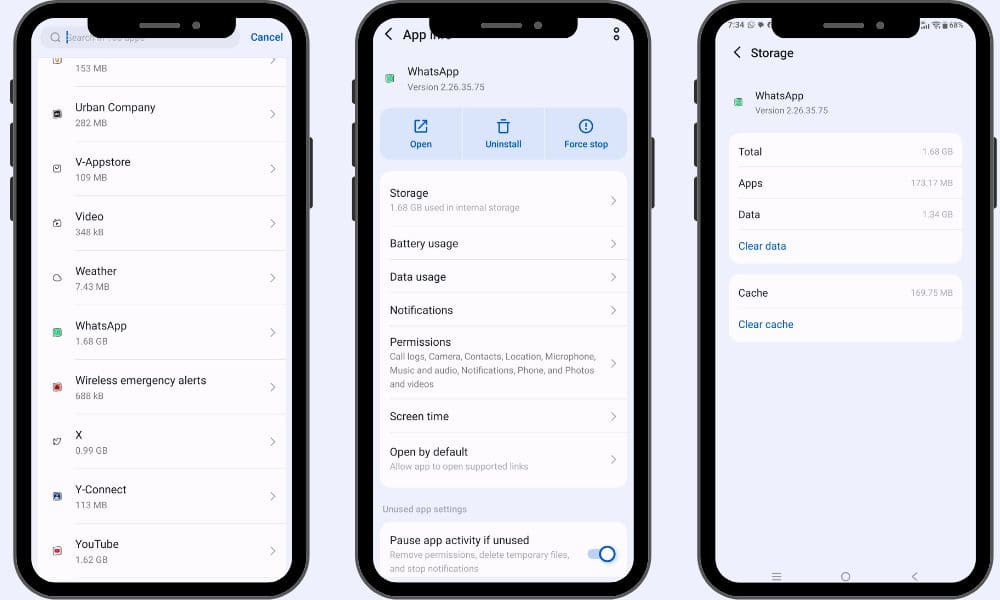
If you’ve tried the steps above and still hear nothing, it’s time to clear the “digital cobwebs.” Over time, apps accumulate cache temporary data that helps the app run faster. However, this data can become corrupted, leading to playback interference.
To refresh the app without losing your precious chats:
- Open Settings > Apps > WhatsApp.
- Tap Storage.
- Select Clear Cache.
This is a non-destructive way to wipe away the temporary files that may be blocking your audio stream.
Don’t tap “Clear data” unless you want to reset your app completely.
4. Grant Permissions to WhatsApp
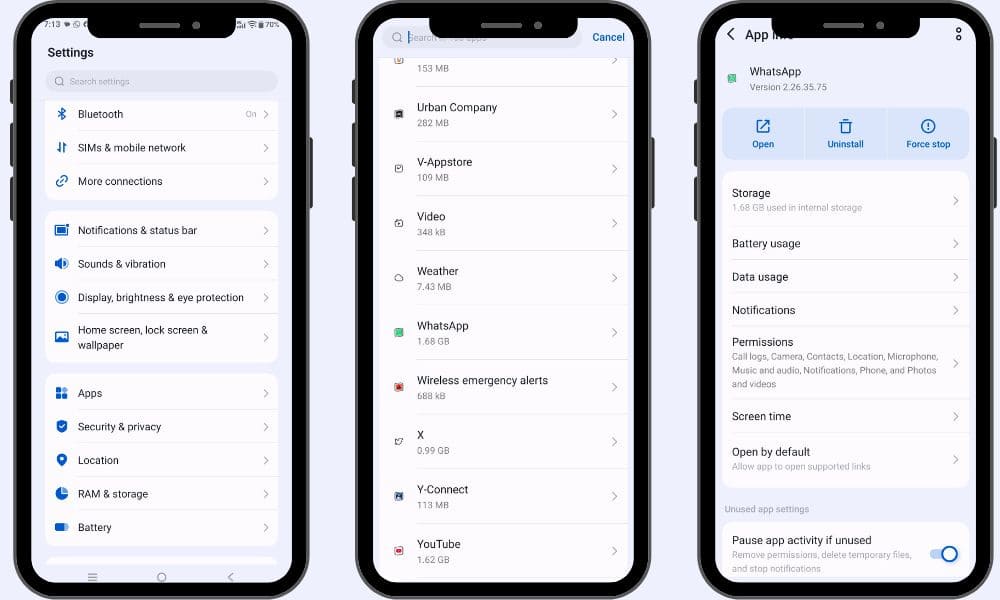
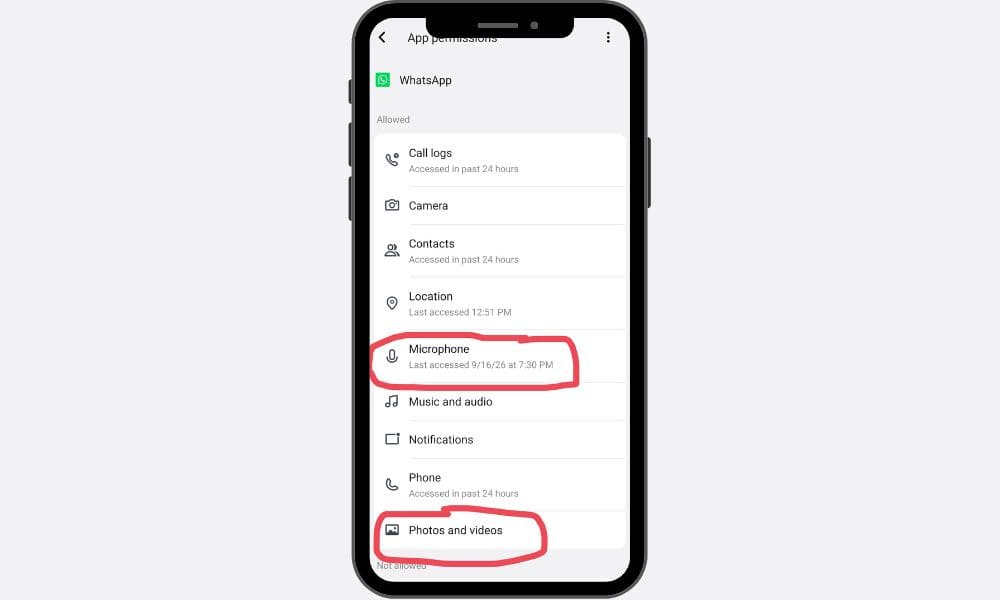
Privacy settings are essential, but they can act as a rigid gatekeeper. If WhatsApp doesn’t have the explicit “OK” to access your hardware or files, it simply won’t process the audio for your updates. We often deny these permissions during the initial app setup and completely forget about it, effectively crippling the app’s features.
To verify your access, follow this precise path:
- Go to Settings > Apps.
- Select WhatsApp.
- Choose Permissions.
- Allow Microphone and Media Files access.
Modern app permissions are often “all-or-nothing.” By denying one seemingly small permission, you might inadvertently disable the entire audio processing chain for your media.
This allows WhatsApp to access and play audio correctly.
5. Restart WhatsApp & Your Phone
Sometimes, a simple reboot fixes glitches:
- Close WhatsApp completely and open it again.
- Restart your phone to refresh all connections.
This often resolves issues where audio fails to start.
6. Test Audio With Different Status
- Try another contact’s status that definitely has audio.
- If that one plays fine, the original video may have no audio track.
7. Check Internet Connection
Poor Wi-Fi or mobile data may prevent audio from loading.
Try switching network or rebooting your router.
Quick Fix Table (at a glance)
| Problem | Easy Solution |
| Audio not heard | Increase media volume, unmute phone |
| Audio glitches | Clear cache, restart app |
| Audio won’t load | Check network |
| Audio permissions denied | Enable permissions |
WhatsApp Status Audio Issue Video
Bonus Stats
- WhatsApp has over 3 billion active users worldwide in 2025.
- Over 780 million users view Status daily — showing how important Status content is.
Conclusion
When your WhatsApp Status audio not working, it’s usually a simple fix — from increasing volume to updating the app.
By following this guide step-by-step, you can resolve almost every scenario without hassle.
Remember: Keep WhatsApp updated and review permissions regularly to prevent future audio issues.

Subhankar Sharma is an SEO specialist with over 9 years of experience in boosting organic traffic and online visibility through data-driven strategies. At DigiWhoop, he combines technical expertise with user-focused content to help readers make informed tech and product decisions.