
Imagine this: you’ve just captured the perfect sunset, overlaid that trending track, and hit “post” on your WhatsApp Status. You go back to admire your work, and nothing. Total silence. Or perhaps you’re tapping through a friend’s update and the video plays like a silent film from the 1920s. It’s a frustrating digital disconnect, but don’t worry it isn’t a hardware death sentence. Most audio glitches are just simple settings that have drifted off course. As a Digital Solutions Specialist, I’ve seen these “silent” bugs countless times, and they are almost always solvable in a flash.
By following these “Quick Tech Hacks,” you can restore your sound in under 10 seconds per step. Let’s get your audio back.
The “Ghost in the Machine”: Update Your App
Time to execute: 5 seconds
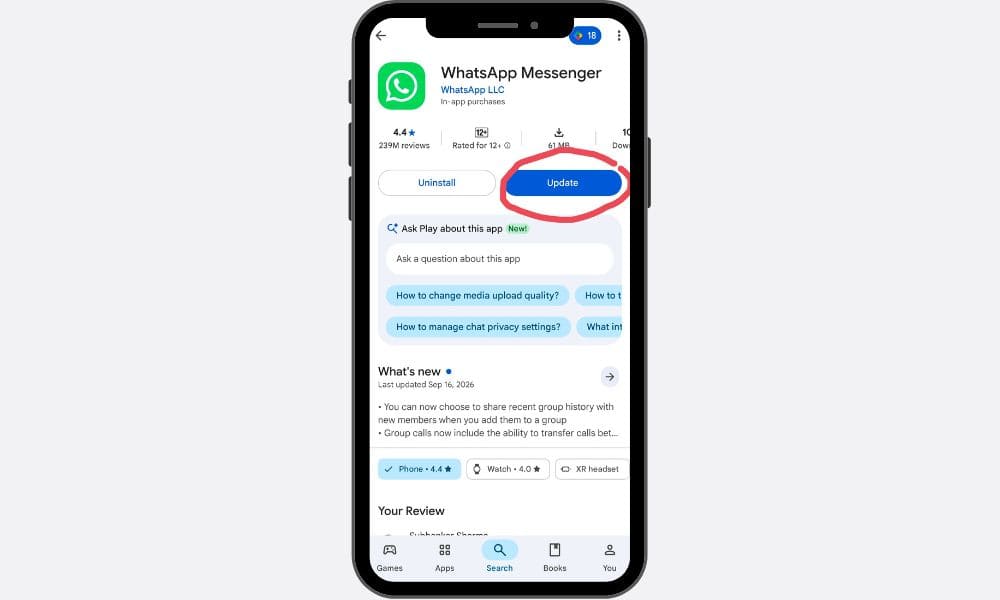
Let’s start with the low-hanging fruit: the software update. The first and most common reason for audio failure is simply running an outdated version of the app. Software developers are constantly playing a game of “whack-a-mole” with bugs, and older versions of WhatsApp are notoriously prone to status audio glitches where the sound simply fails to trigger.
To fix this, sprint over to your respective app store (Google Play Store or Apple App Store) and check for any pending updates for WhatsApp. Keeping your app current ensures you have the latest compatibility patches. In the tech world, “versioning” is often the overlooked culprit; as mobile operating systems evolve, legacy app versions struggle to communicate with new hardware drivers, leading to these eerie silent errors.
The Volume Trap: Media vs. Ringtone
Time to execute: 3 seconds
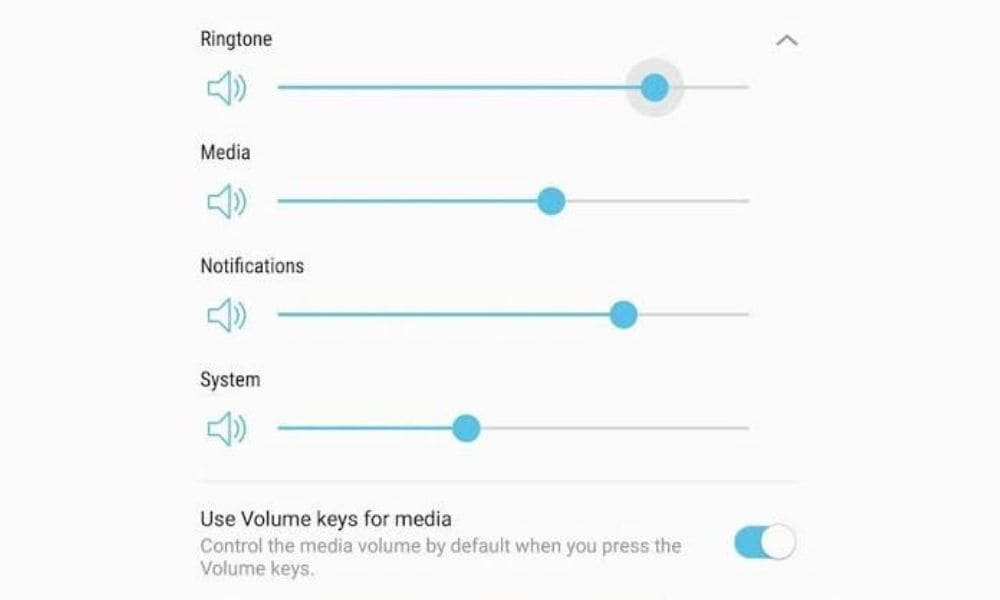
A frequent source of tech frustration is a simple misunderstanding of the modern user interface. Many users assume that if their phone is “loud” because the ringer is up, all sounds will play. However, your device manages audio in silos: “Ringtone Volume” for calls and “Media Volume” for everything else including WhatsApp Statuses.
“Just keeping the ringtone volume high won’t work.”
If your media slider is at zero, your status will remain muted, regardless of how high your ringer is set. This distinction is a classic example of how “intuitive” design can sometimes backfire, creating a barrier when users don’t realize they are adjusting the wrong audio channel.
The Permission Gatekeeper: Mic and Media Access
Time to execute: 10 seconds
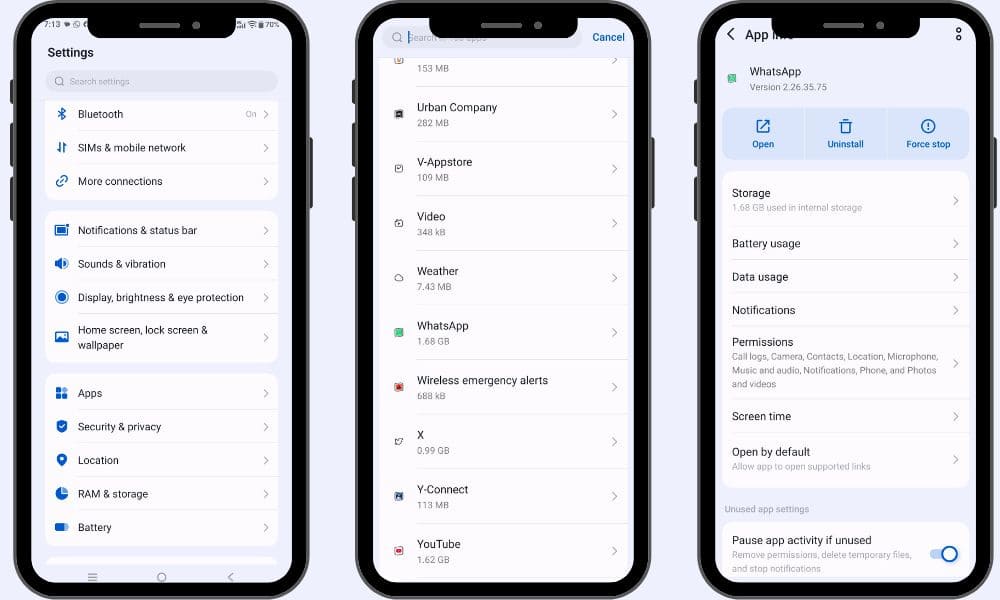
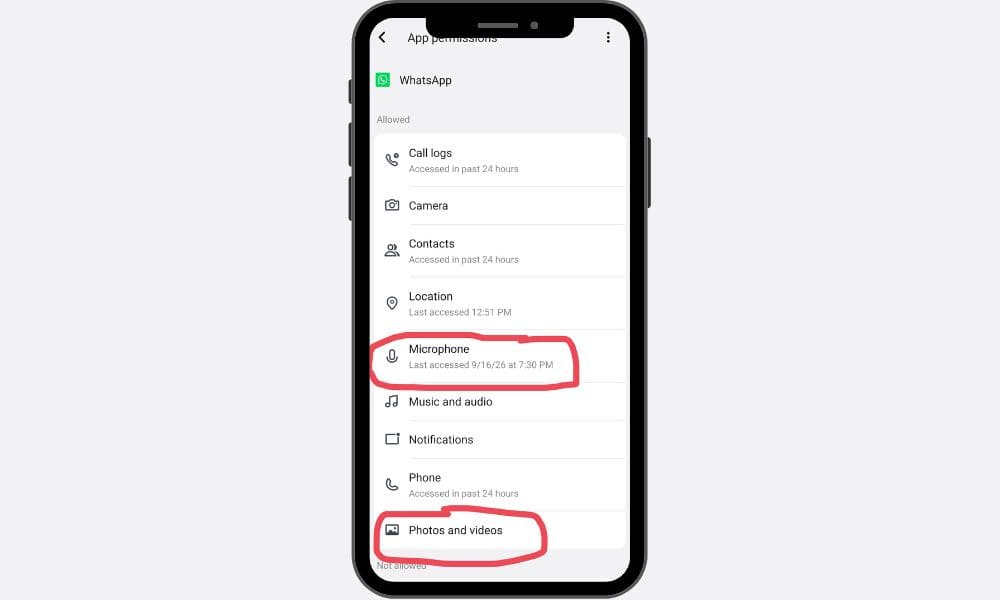
Privacy settings are essential, but they can act as a rigid gatekeeper. If WhatsApp doesn’t have the explicit “OK” to access your hardware or files, it simply won’t process the audio for your updates. We often deny these permissions during the initial app setup and completely forget about it, effectively crippling the app’s features.
To verify your access, follow this precise path:
- Open your phone Settings.
- Navigate to Apps (or App Management).
- Select WhatsApp.
- Tap on Permissions.
- Ensure both Microphone and Media (or Files and Media) are toggled to “On.”
Modern app permissions are often “all-or-nothing.” By denying one seemingly small permission, you might inadvertently disable the entire audio processing chain for your media.
Clearing the Digital Cobwebs: The Cache Reset
Time to execute: 8 seconds
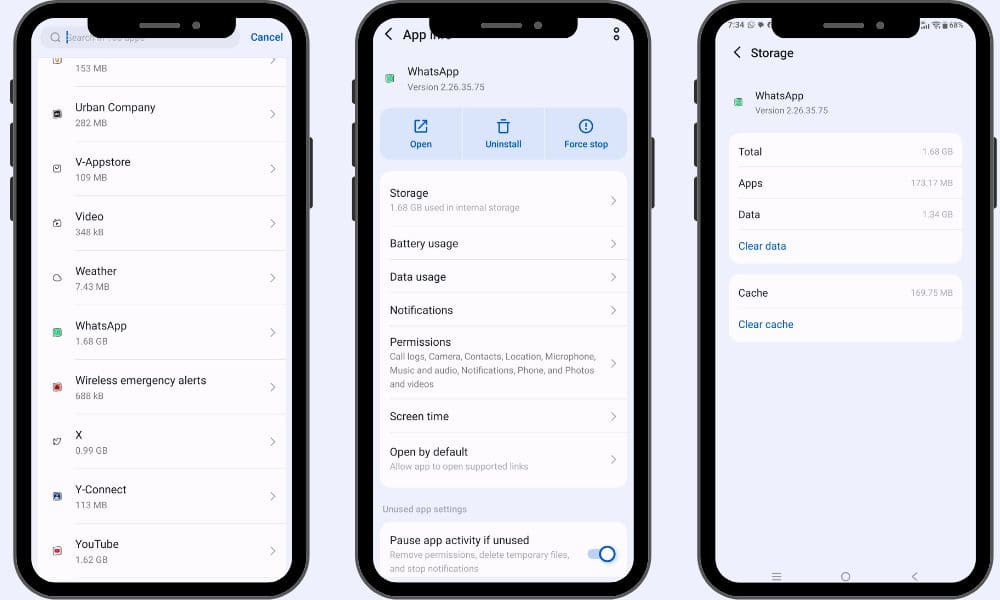
If you’ve tried the steps above and still hear nothing, it’s time to clear the “digital cobwebs.” Over time, apps accumulate cache temporary data that helps the app run faster. However, this data can become corrupted, leading to playback interference.
To refresh the app without losing your precious chats:
- Go to your phone Settings.
- Select Apps > WhatsApp.
- Tap on Storage (or Storage Usage).
- Select “Clear Cache.” (Note: Do not select “Clear Data” unless you want to reset the entire app).
This is a non-destructive way to wipe away the temporary files that may be blocking your audio stream.
Conclusion: A Silent Problem No More
Restoring your WhatsApp Status audio is usually just a matter of checking the basics:
- Update the app to kill any lingering versioning bugs.
- Adjust the Media Volume, not just the ringtone.
- Toggle Permissions for the Microphone and Media.
- Clear the Cache to remove corrupted temporary data.
Bonus Tip: If you’ve run through these steps and the silence persists, it’s time to lean on the experts. The team at DigiWhoop suggests a more personalized approach: simply comment “Fix” on their platform, and they will reach out with a tailored solution for your specific device.
Troubleshooting your tech isn’t just about the clicks, it’s about the mindset. It makes you wonder: how often do we go searching for complex, expensive explanations for our tech problems, only to realize the solution was a simple toggle we overlooked in our haste? Always check the simple settings first; the answer is usually hiding in plain sight.

Subhankar Sharma is an SEO specialist with over 9 years of experience in boosting organic traffic and online visibility through data-driven strategies. At DigiWhoop, he combines technical expertise with user-focused content to help readers make informed tech and product decisions.